How to Set Up a Shipping Test
Step 1: Create a New Shipping Test
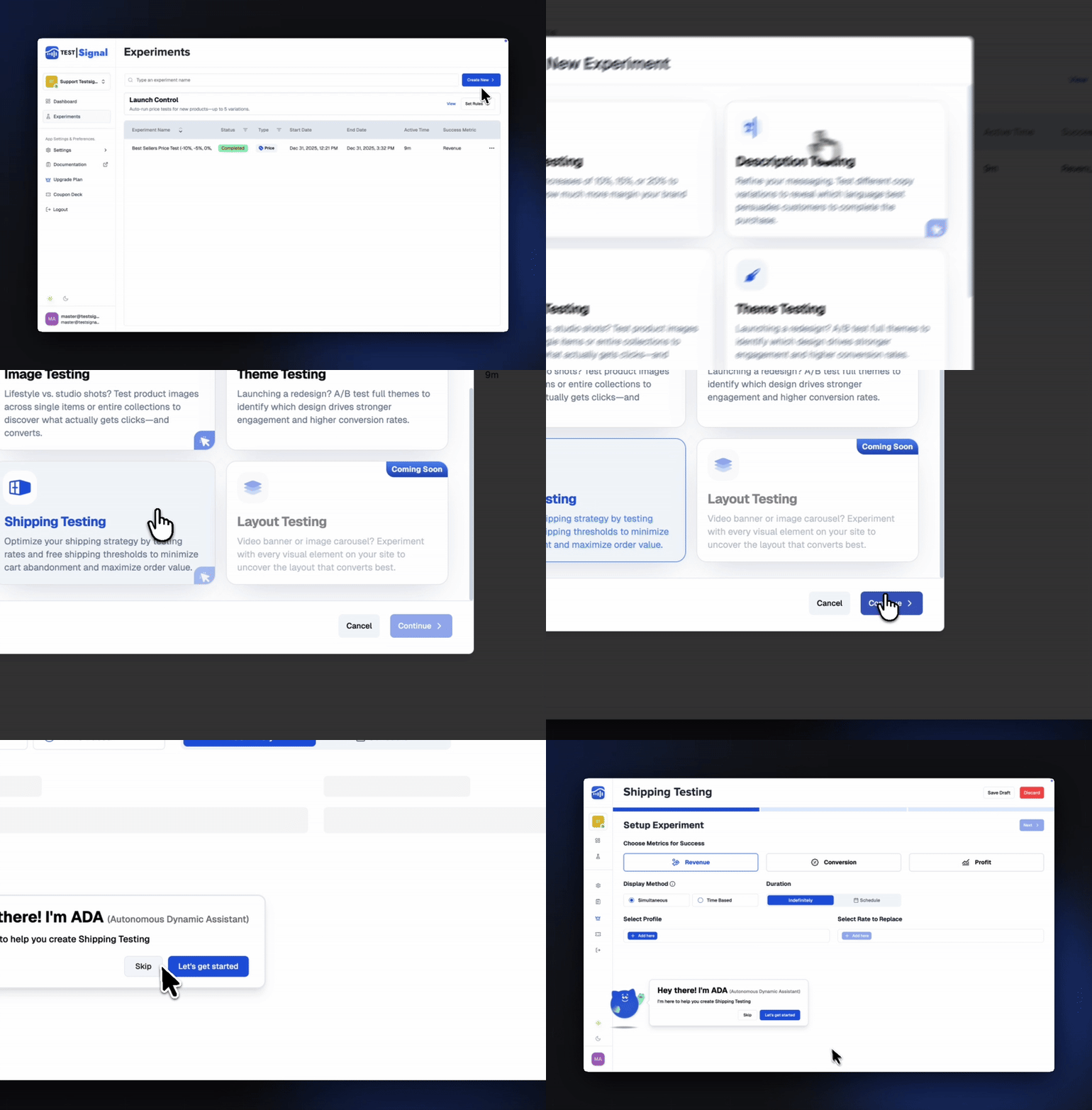
Head to the Experiments tab in your TestSignal sidebar.
Click Create New at the top of the experiments table, then choose Shipping Test as your experiment type.Hit Continue to get started.
Step 2: Set Up Your Experiment
Configure the core settings for your test:
- Choose your primary success metric(s)
- Set your experiment duration — scheduled dates or indefinite
- Select the shipping profiles to include in the test
- Choose the shipping zones within each selected profile
- Pick the Rate to Replace — the existing rate you want to test against
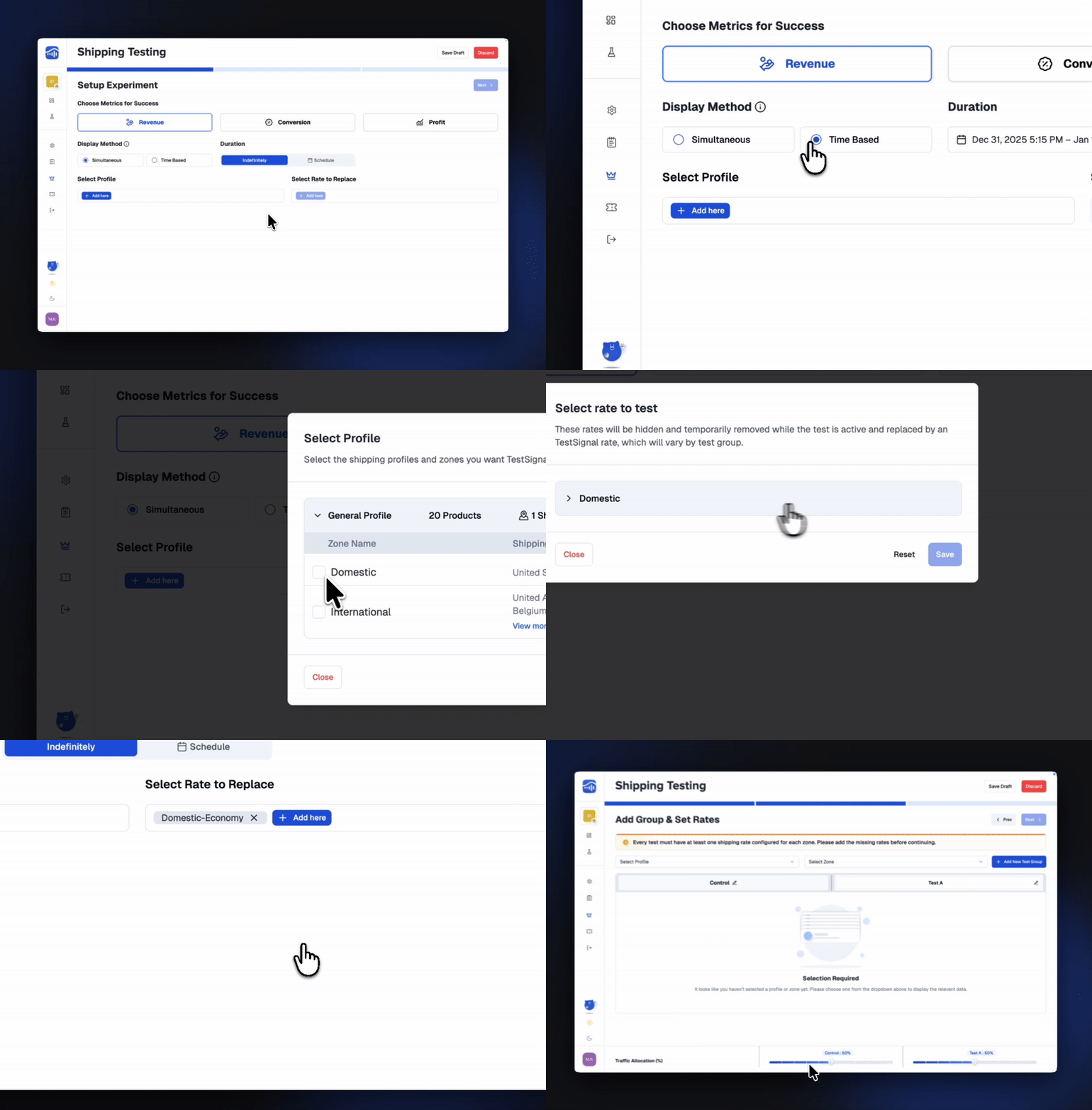
Once everything looks right, click Next Step.
Step 3: Add Test Groups & Set Shipping Rates
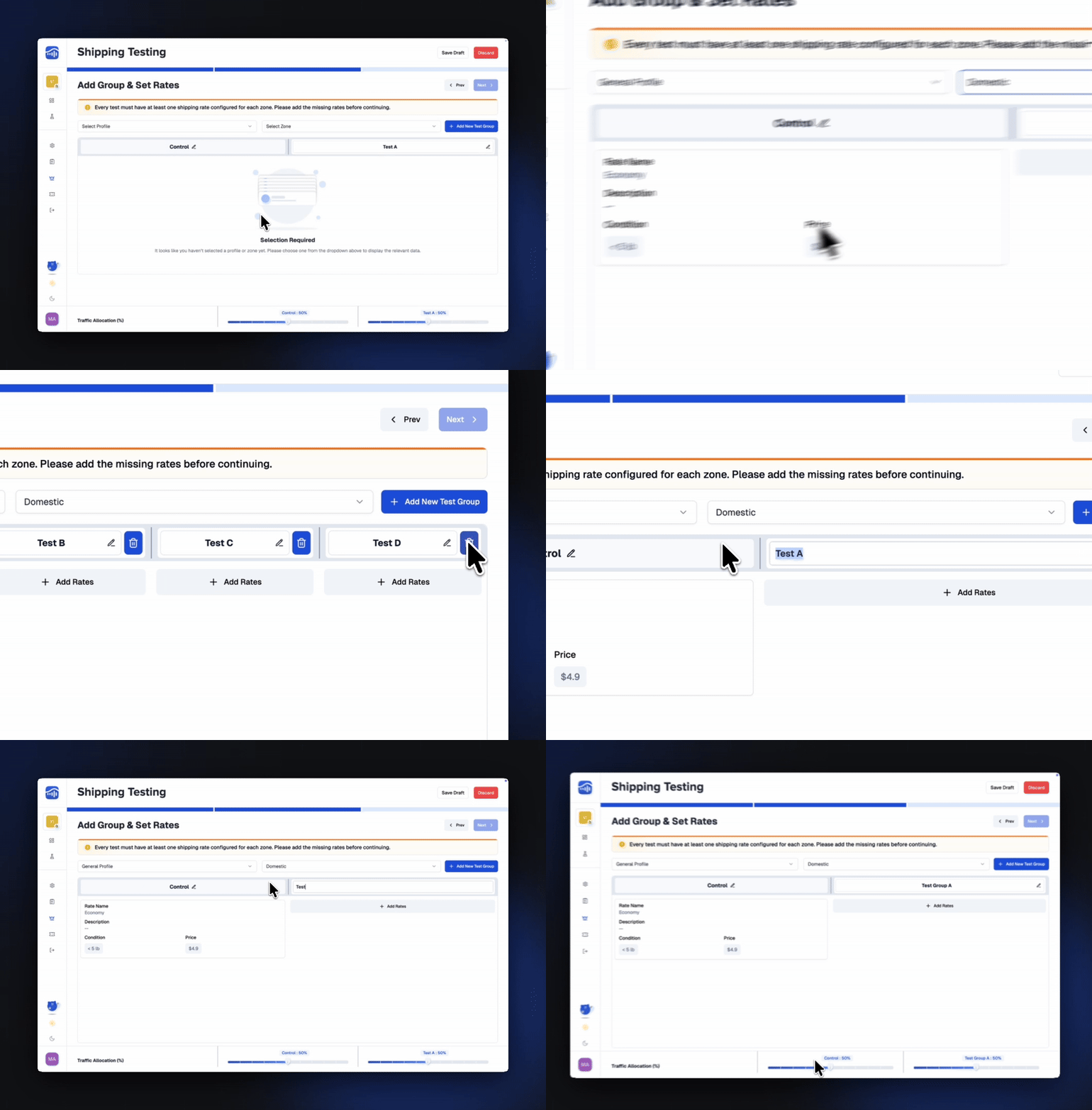
Once profiles and zones are selected, the available rates for that zone will appear.
Create Test GroupsClick Add New Test Group (up to 5 groups supported)
- Give each group a name
- Assign traffic distribution using the footer controls
Create your test rate for each group Choose the rate type you want to test:
- Flat Rate
- Conditional Rate (based on Price or Weight)
Enter the rate amount and conditions.
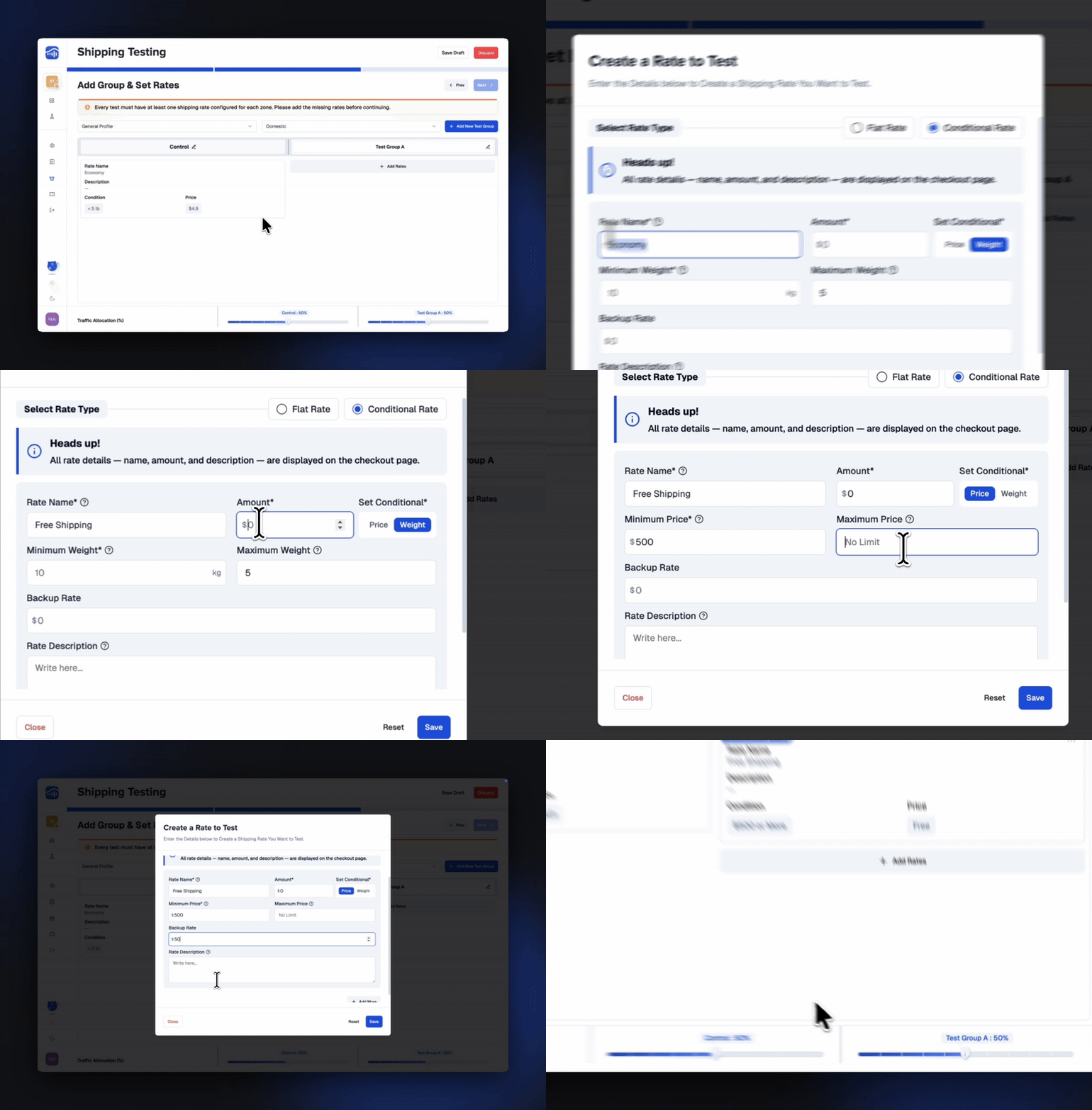
When everything looks good, click Next to continue.
Step 4: Final Review & Launch
Before going live, you’ll land on the Experiment Overview page — a quick snapshot of everything you’ve set up.
Review the EssentialsDouble-check that all key details look right:
- Experiment duration
- Primary success metric
- Selected products & variants
- Test groups & rate configurations
- Traffic split
- Preview your updated rates at checkout
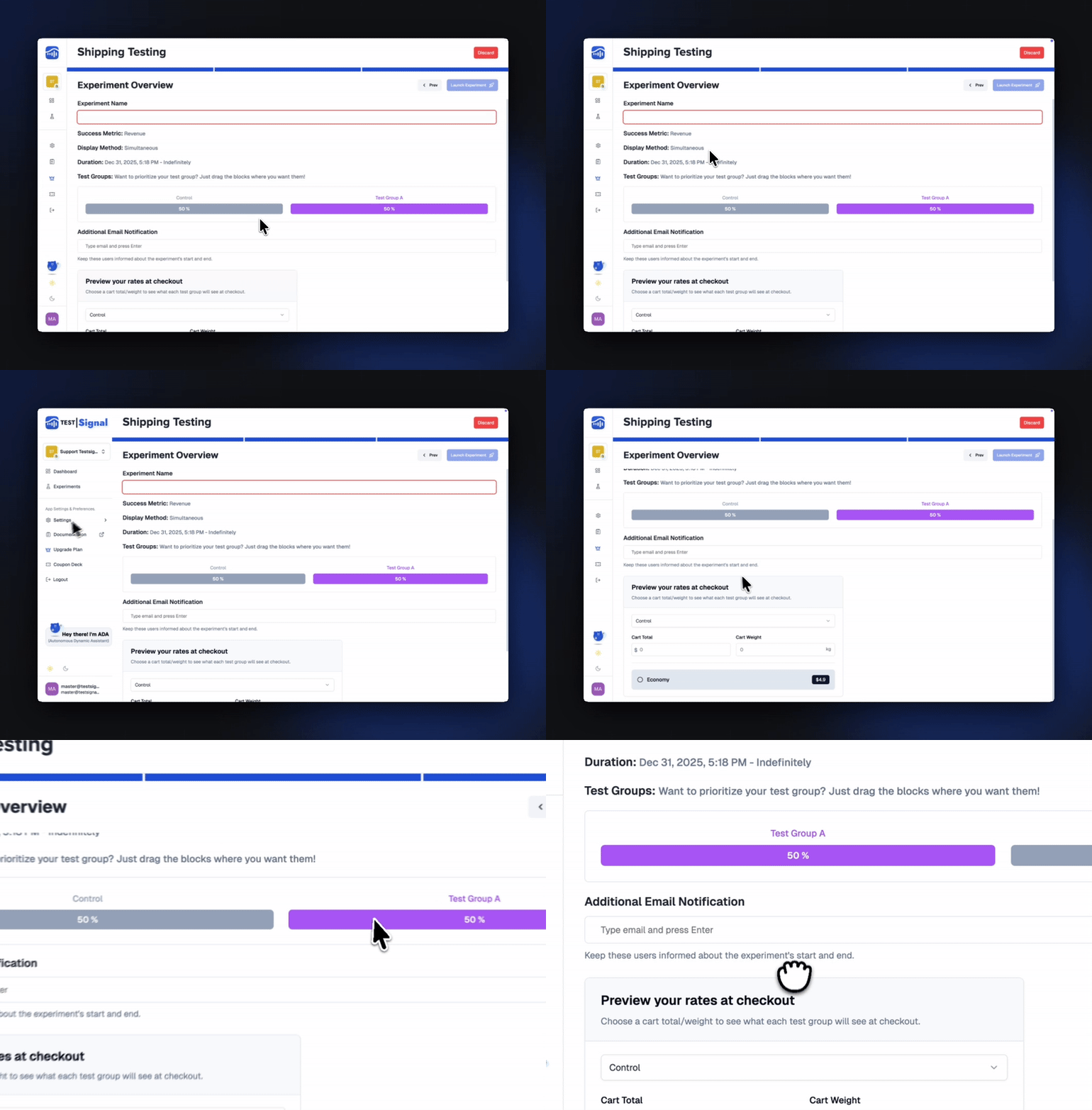
Give your experiment a clear name so it’s easy to track later. (You can also rename it anytime before launching.)
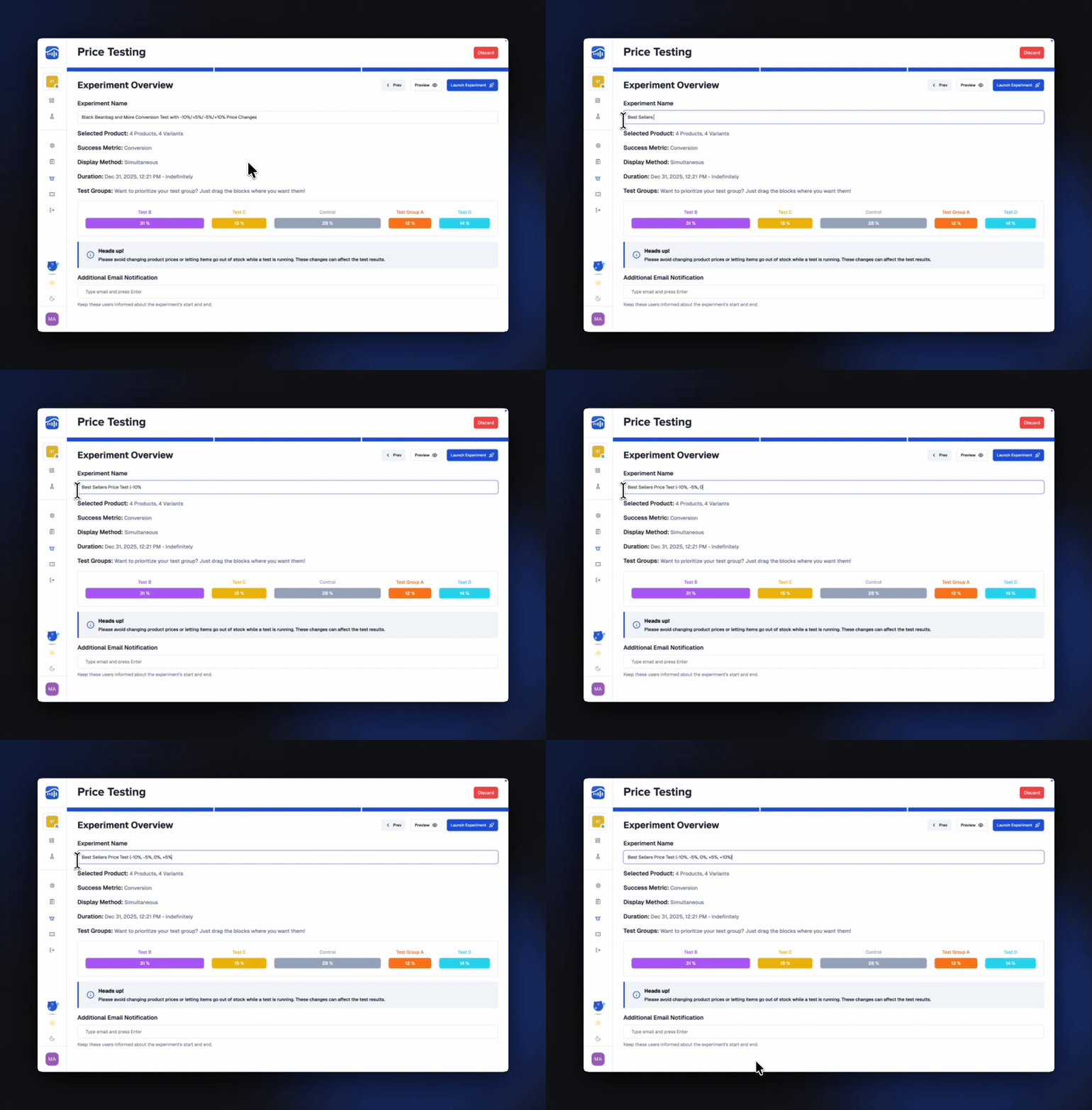
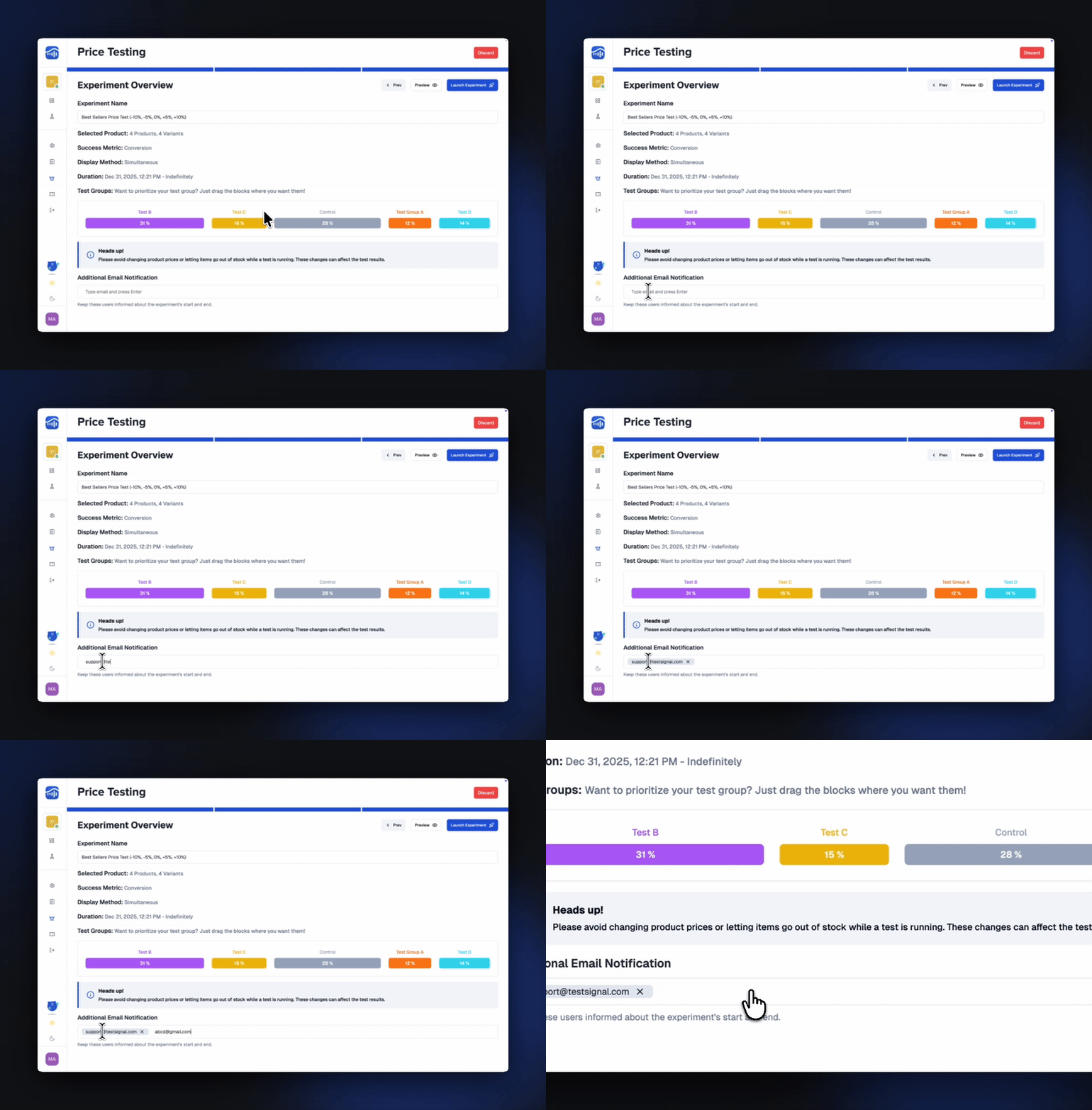
- Experiment start confirmation
- Important status updates
- Results notifications
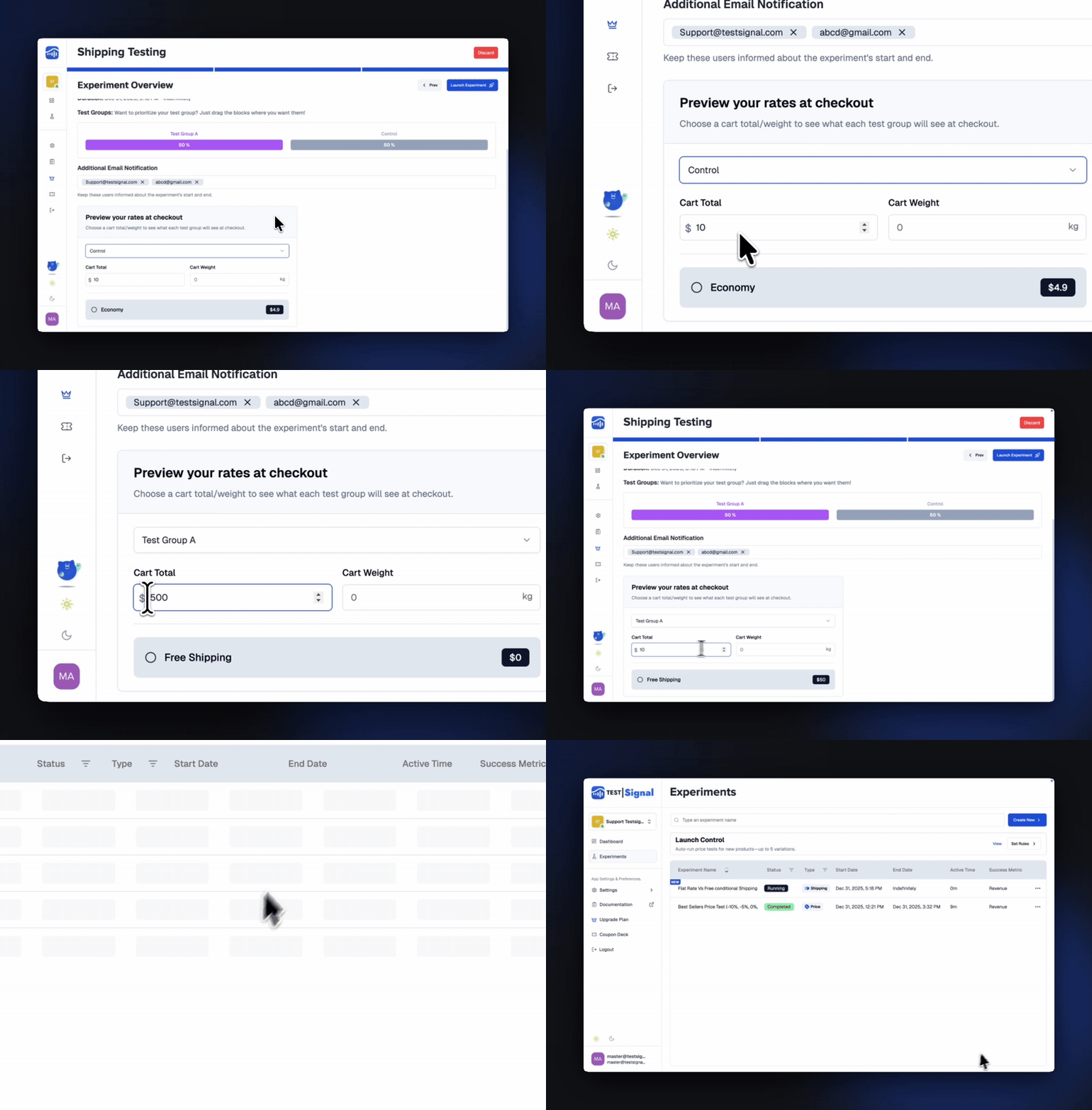
Launch Your Test
Once everything looks perfect, click Launch Experiment in the bottom-right corner.
Your Shipping test is officially live—time to let the data roll in!
 TestSignal Team