Testing Prices with Stay.Ai
TestSignal integrates seamlessly with Stay.ai to let you run price experiments on subscription products—without duplicating products or breaking existing subscription logic.
Whether you want subscription prices to follow your one-time price test or run independently, TestSignal gives you full control.
Step 1: Generate Stay.AI API Key
To allow TestSignal to communicate with Stay.AI:
Log in to your Stay.AI Admin.
Go to Settings → API Keys.
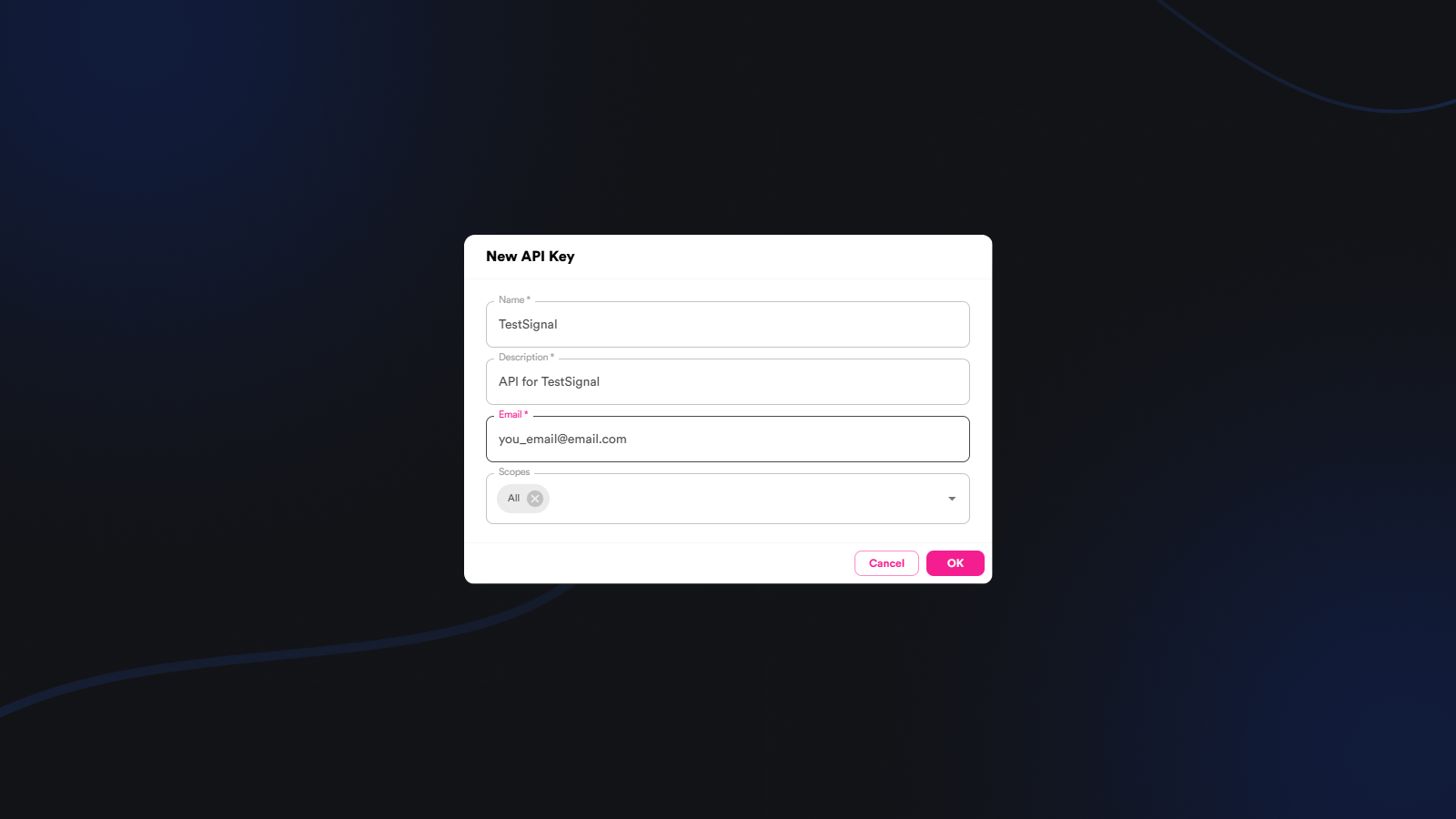
Click Create API Key.
Use the following configuration:
Name: TestSignal
Description: Used for TestSignal price testing
Email: your_email@email.com
Scopes: Enable full access (or at minimum read/write subscription pricing)
Copy the generated API key.
Step 2: Connect Stay.AI to TestSignal
Open your TestSignal Dashboard.
Navigate to Settings → Integrations.
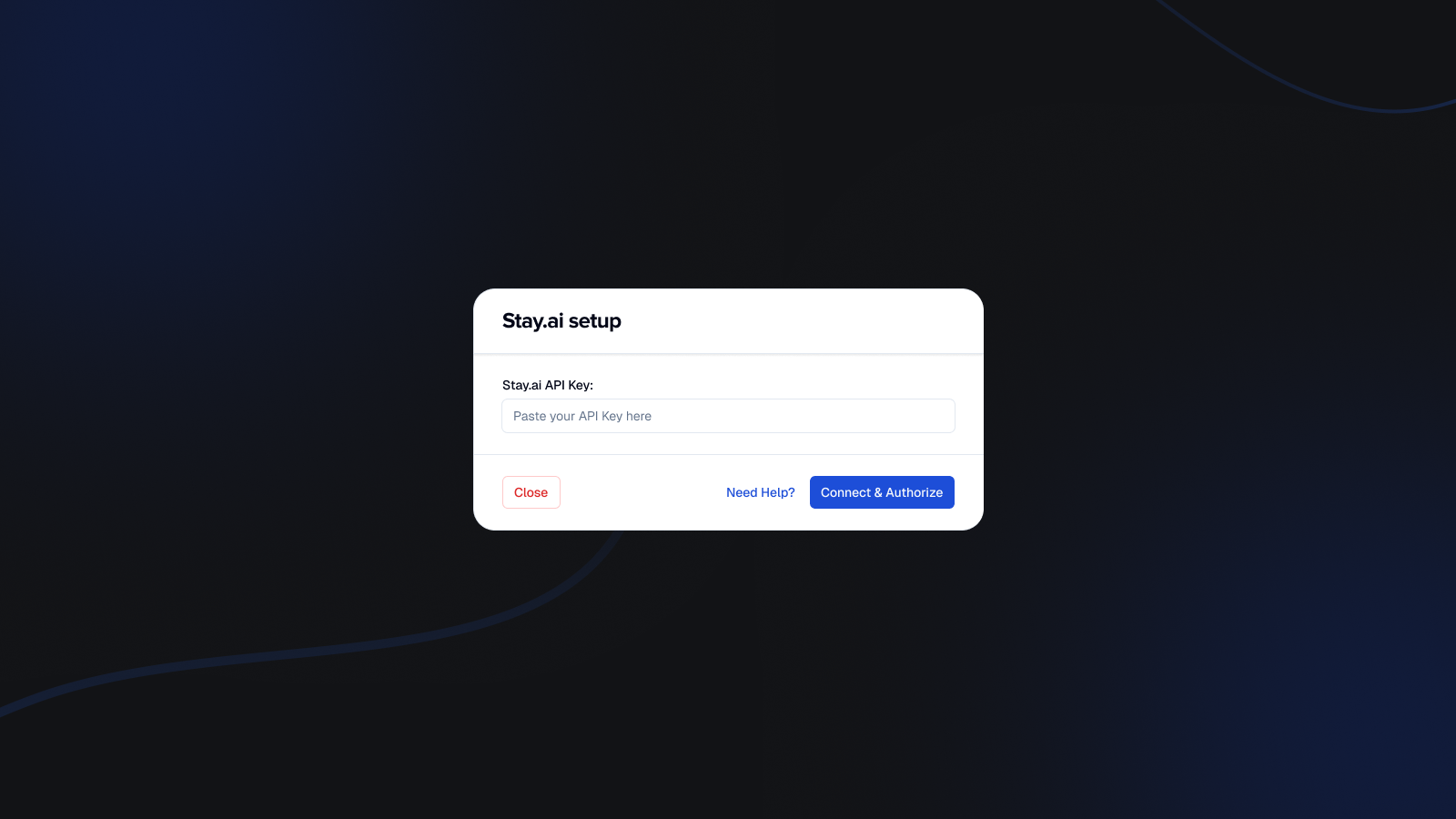
Select Stay.AI from the integrations list.
Paste your API key into the required field.
Click Connect & Authorize Integration.
Step 3: Create Your Price Test (For example)
Go to Tests → Price Tests → Create New Test.
Configure the core settings for your test:
Choose your primary success metric: Revenue, conversion otr profit
- Set your experiment duration
(Optional) Target specific device types or visitor types
(Optional) Turn on UTM Controls to include or exclude traffic based on UTM rules
Select the product(s) that use Stay.AI subscriptions.
Select the product(s) that use Stay.AI subscriptions.
Adjust one-time price
Adjust subscription price or discount
See our detailed guide here.
Set traffic allocation (e.g., 50/50).
Double-check that all key details look right:
- Experiment duration
- Primary success metric
- Selected products & variants
- Test groups & price adjustments
- Traffic split
Finally Name Your Experiment, Add Notification Emails & Experiment Preview
Launch Your Test.
Important: Always connect Stay.AI before creating the test.
If you create a test first and then connect Stay.AI, pricing sync may fail and require recreating the experiment.
Step 4: QA Before Launch
Subscription pricing involves multiple systems, so thorough QA is required.
Verify:- Correct subscription price shows for each variant
- Subscription discount updates properly
- Billing interval (monthly, quarterly, etc.) remains unchanged
- Checkout reflects correct subscription price
- Order in Shopify shows correct subscription pricing
We recommend manually checking each test group using preview links before launching.
How TestSignal Handles Stay.AI Pricing
When integrated:
- TestSignal assigns visitors to a test group
- TestSignal updates the subscription pricing via Stay.AI API
- Stay.AI renders the correct subscription price on the product page
- Checkout and recurring billing follow the assigned variant pricing
This ensures subscription price tests remain statistically clean and technically accurate.
Custom Subscription UI?
If your theme uses a custom Stay.AI widget implementation:
- Ensure price elements update dynamically
- Confirm no hardcoded pricing exists in the theme
- Work with your dev team if pricing does not reflect test variants
TestSignal support team can assist if custom theme adjustments are required.
 TestSignal Team