How to Set Up a Image Test
Step 1: Create a New Image Test
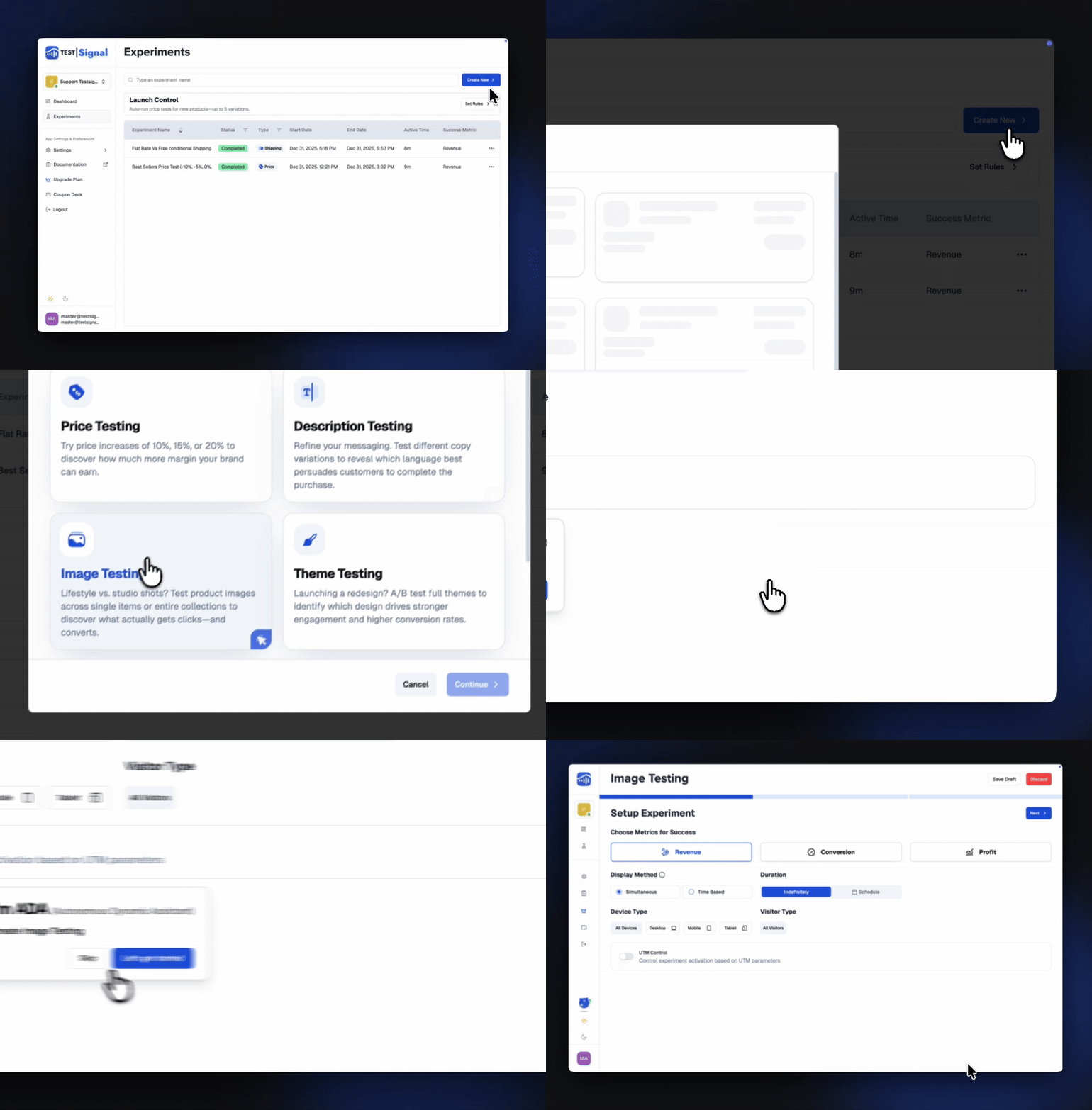
Head to the Experiments tab in your TestSignal sidebar.
Click Create New at the top of the experiments table, then choose Image Test as your experiment type. Hit Continue to get started.
Step 2: Set Up Your Experiment
Configure the core settings for your test:
- Select your success metrics
- Set your experiment duration
- (Optional) Target specific device types or visitor types
- (Optional) Turn on UTM Controls to include or exclude traffic based on UTM rules
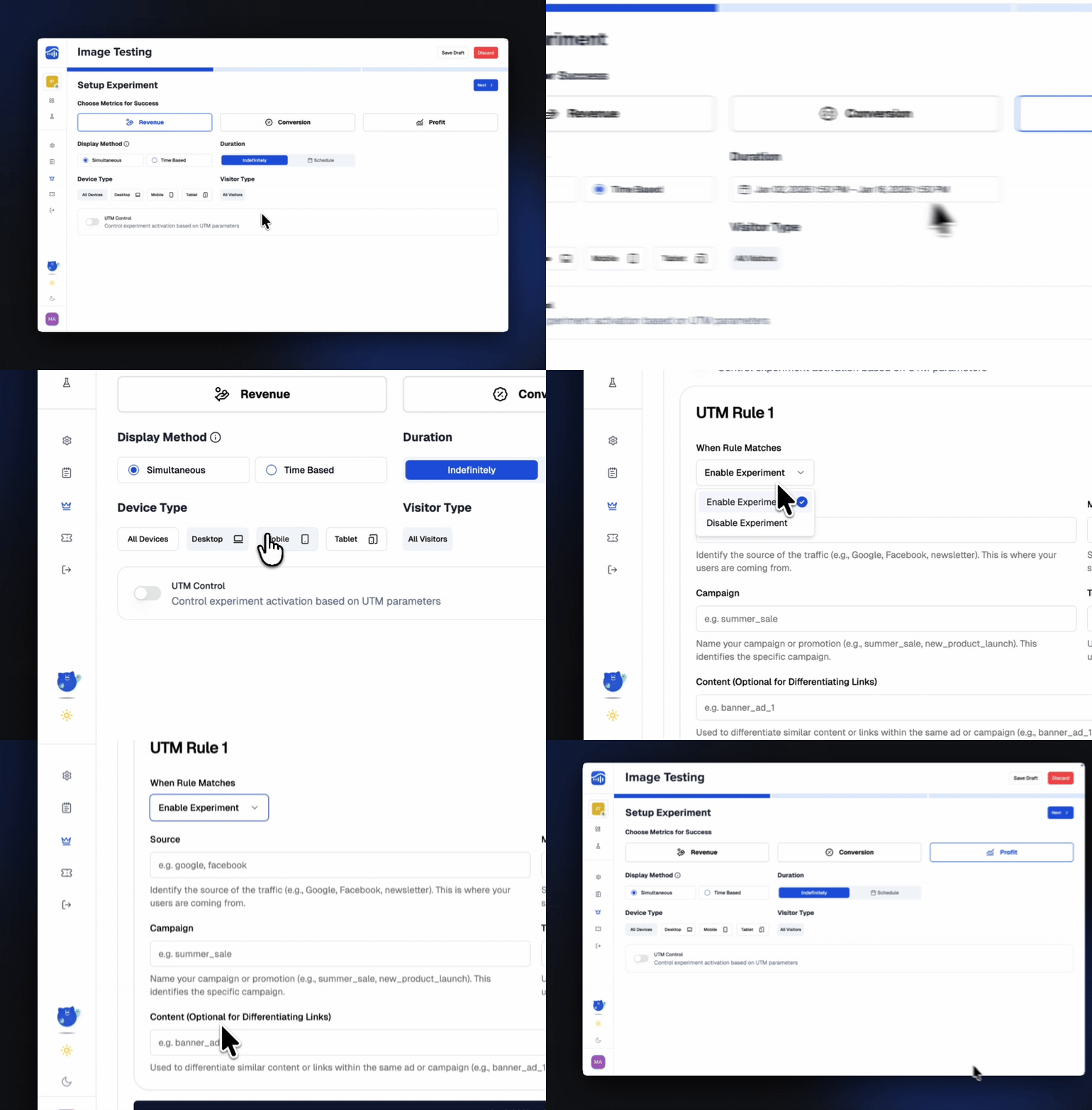
Once everything looks right, click Next Step.
Step 3: Select Products & Set Your Image
Create Test Groups- Click Add New Test Group (up to 5 groups supported)
- Give each group a name
- Assign traffic distribution using the footer controls
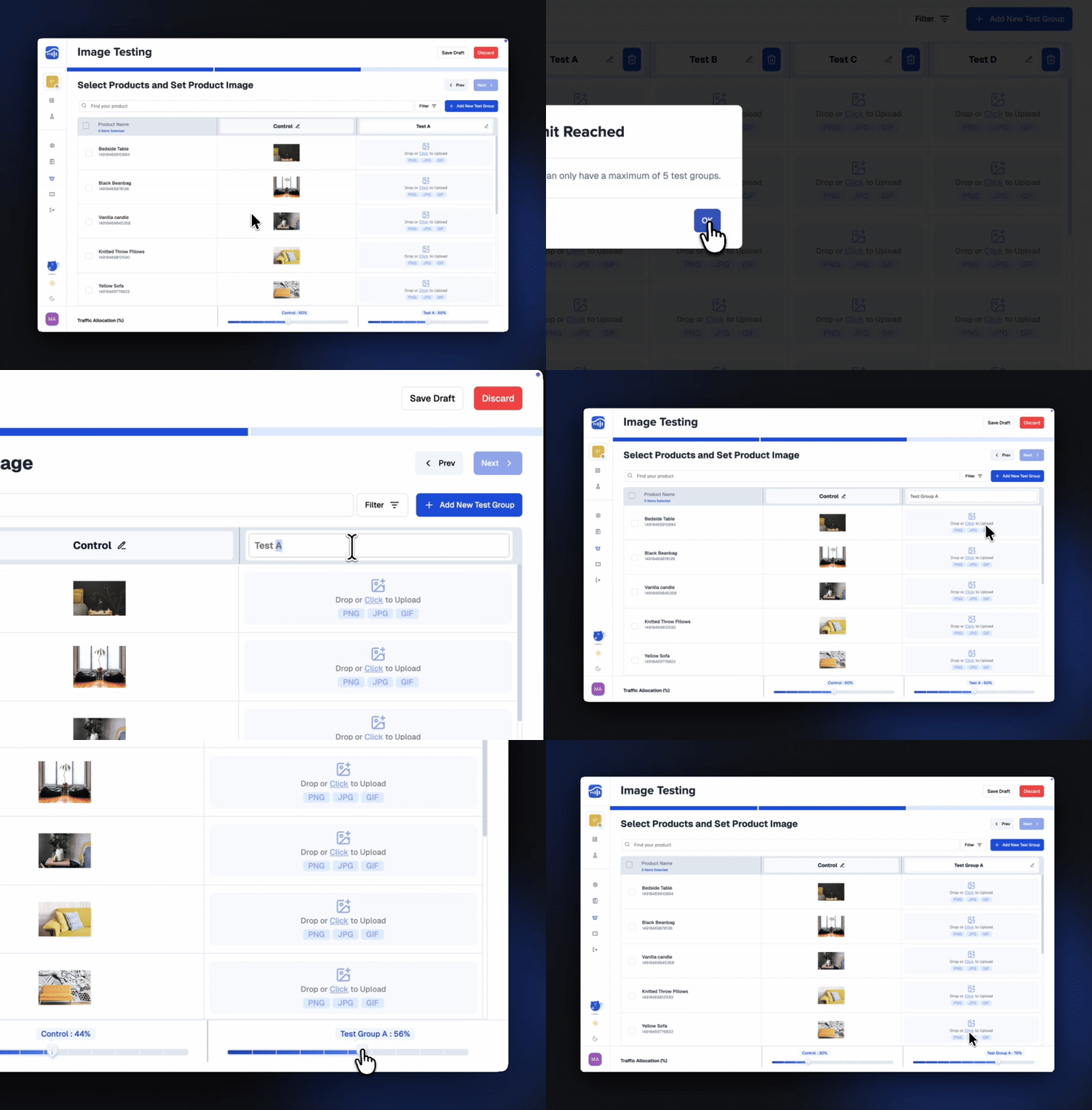
- Pick a product to start your image test!
- Use checkboxes to include specific Product in your test
Your total selected Products appear in the Selected Products indicator → click it anytime to review or remove selections
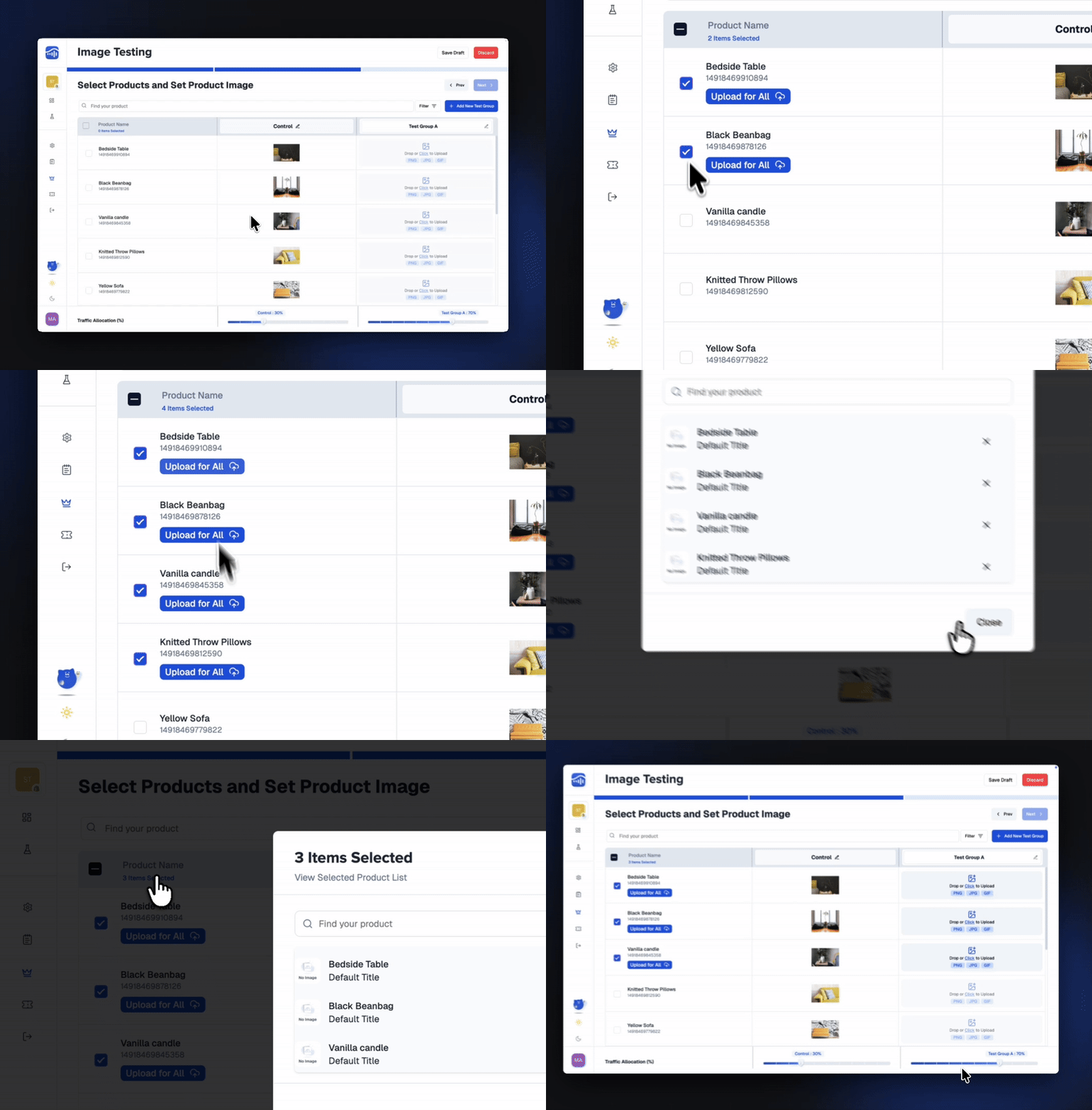
- Click “Drop or Click to Upload”
- Or pick from your product gallery
- Wait for preview to confirm upload
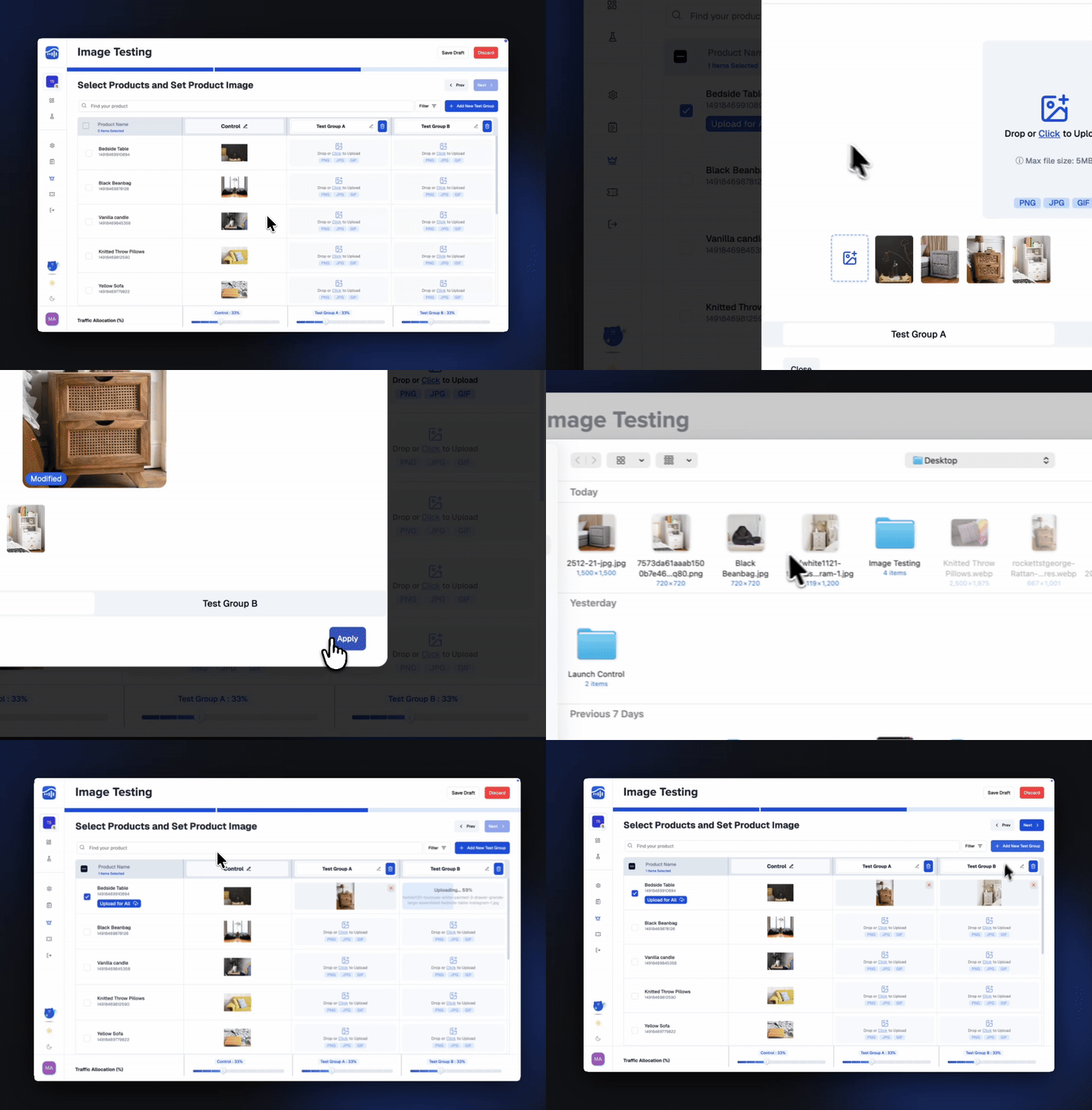
Helpful Tools
Use the search bar to quickly find products, sort items by price, title, or other attributes, and filter your selection by vendor, tag, product type, and more to easily manage the products you want to include in your test.
When everything looks good, click Next to continue.
Step 4: Final Review & Launch
Before going live, you’ll land on the Experiment Overview page — a quick snapshot of everything you’ve set up.
Review the EssentialsDouble-check that all key details look right:
- Experiment duration
- Primary success metric
- Selected products & variants
- Test groups & price adjustments
- Traffic split
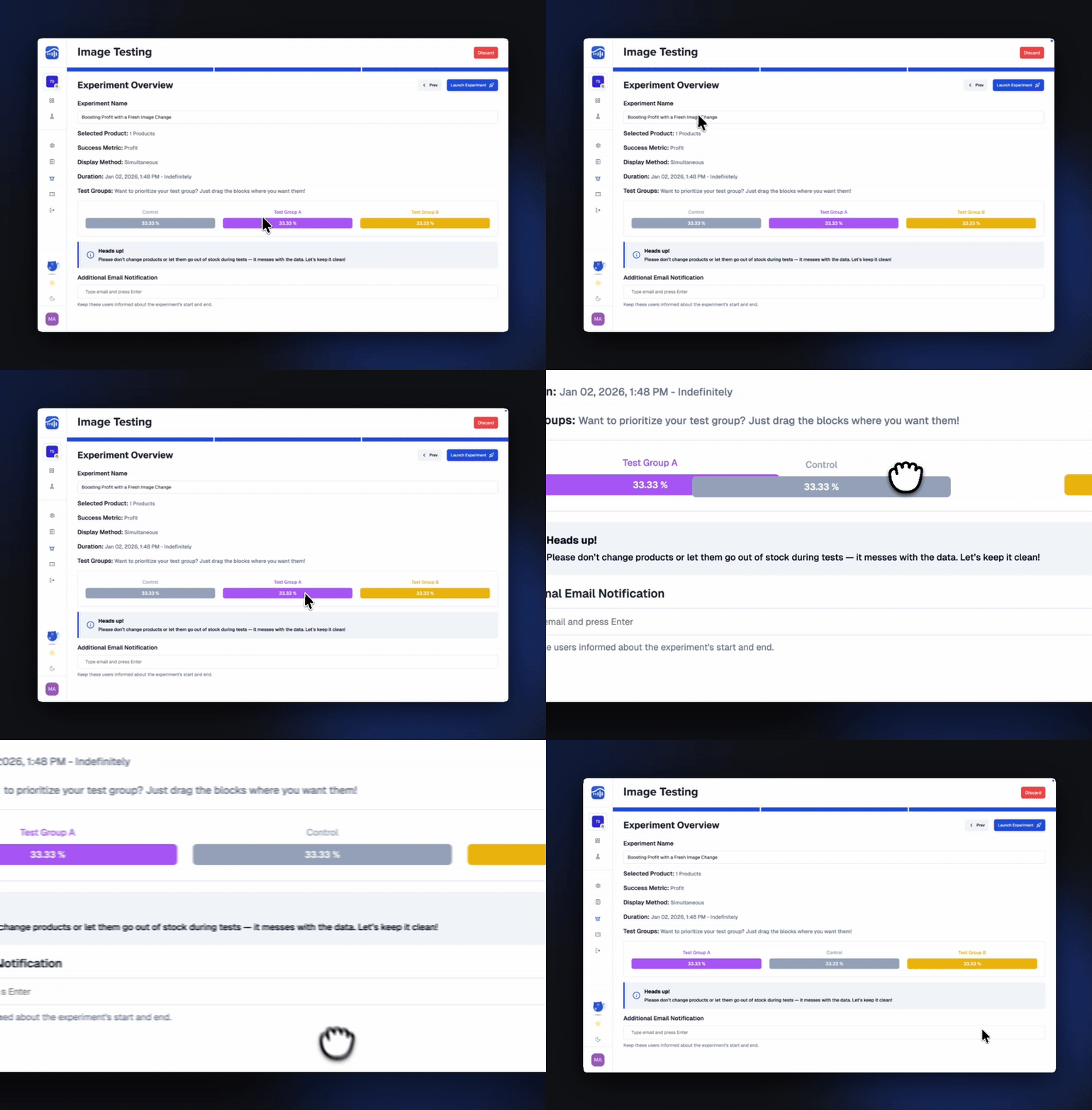
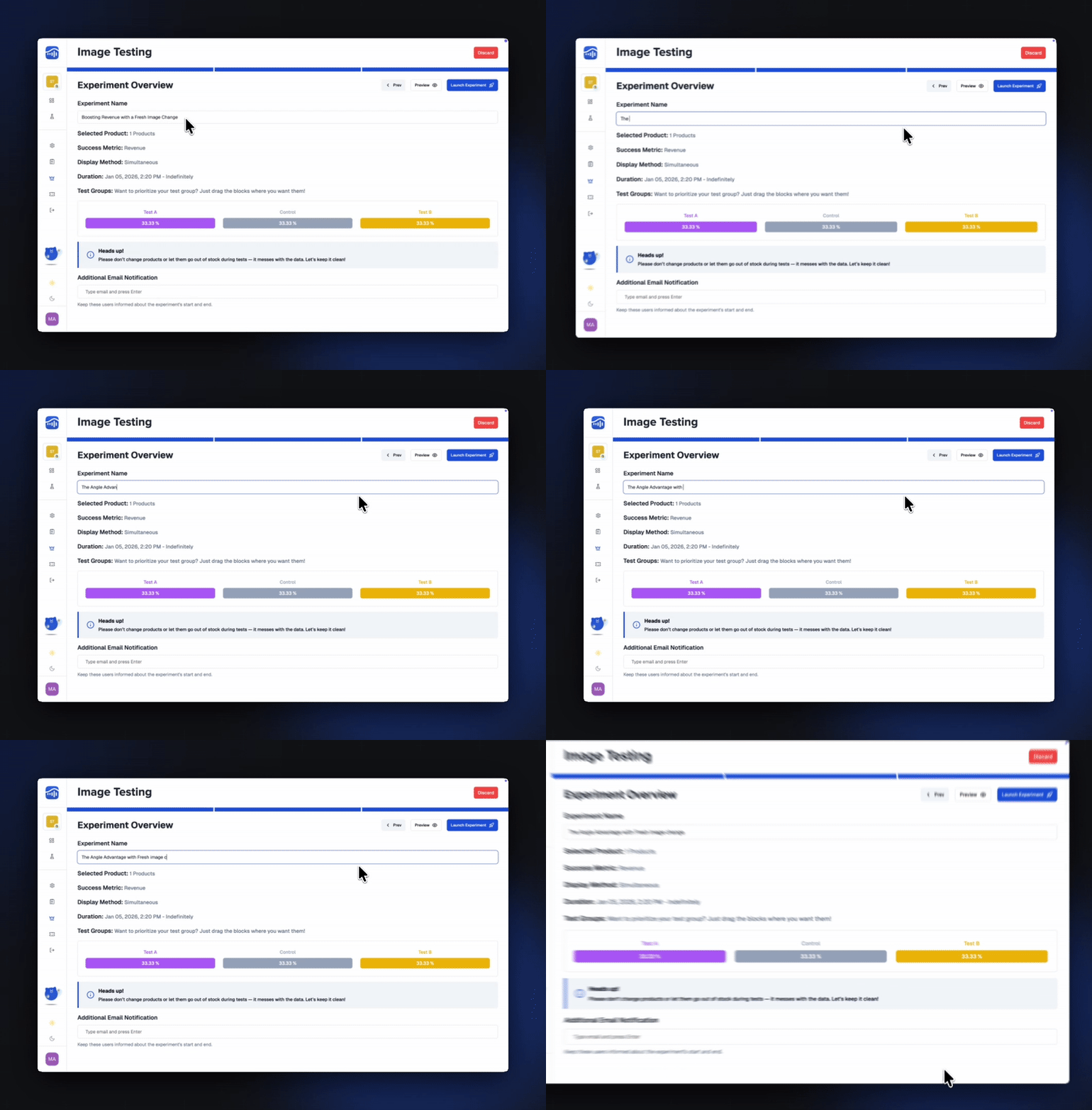
Give your experiment a clear name so it’s easy to track later. (You can also rename it anytime before launching.)
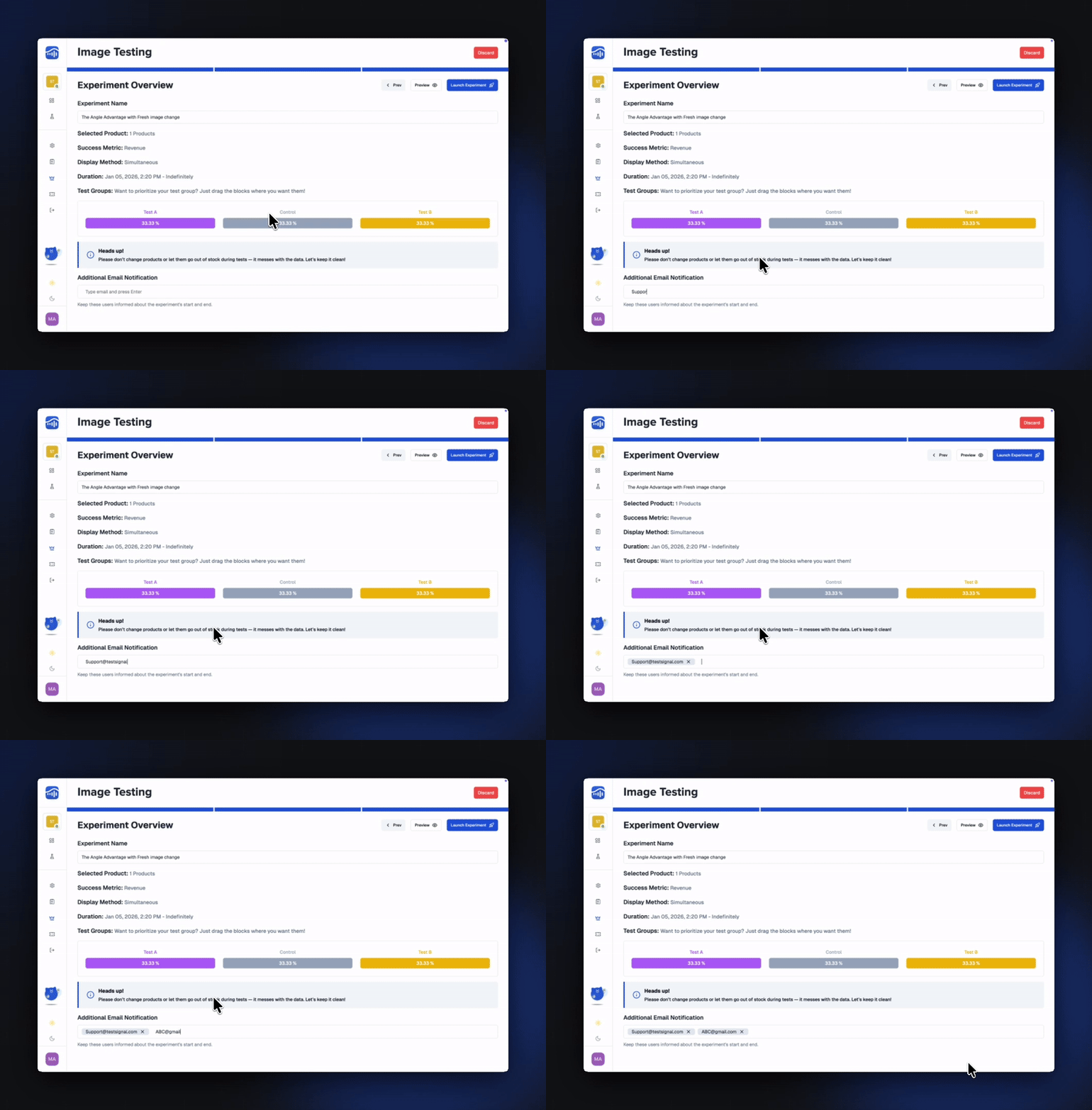
- Experiment start confirmation
- Important status updates
- Results notifications
Click the Preview button to open your site in a new window with the experiment active. Inside the preview widget, you’ll find:
- Experiment name appears in the top-left header
- Product and Test Group drop-downs are in the main area
- Highlight Changes toggle (bottom-left) shows differences
Edit Options Panel (bottom-right) lets you temporarily adjust prices or text for preview purposes
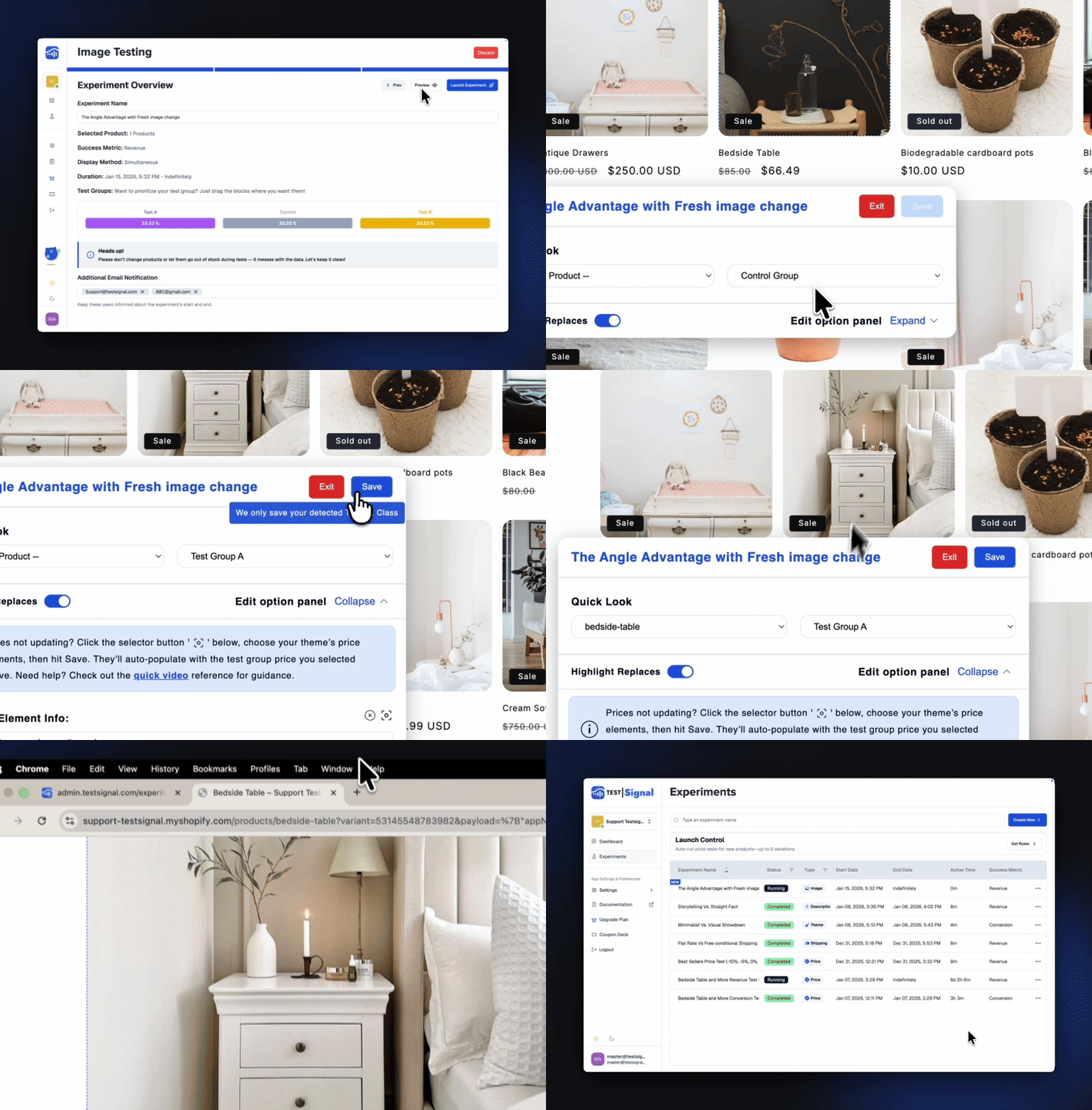
Launch Your Test
Once everything looks perfect, click Launch Experiment in the bottom-right corner.
Your pricing test is officially live—time to let the data roll in!
 TestSignal Team